
Task Manager, for your Mac.
Opens it from any app, as on Windows.
See every app and what it's using right now. When one is slowing your Mac down, end it, or put it in Efficiency Mode so it stops getting in the way. One click either way.
- Free for 24 hours
- $12 once, for up to 3 Macs
- macOS 14 or later, Apple silicon and Intel

Something is hogging your Mac. Find it, and stop it.
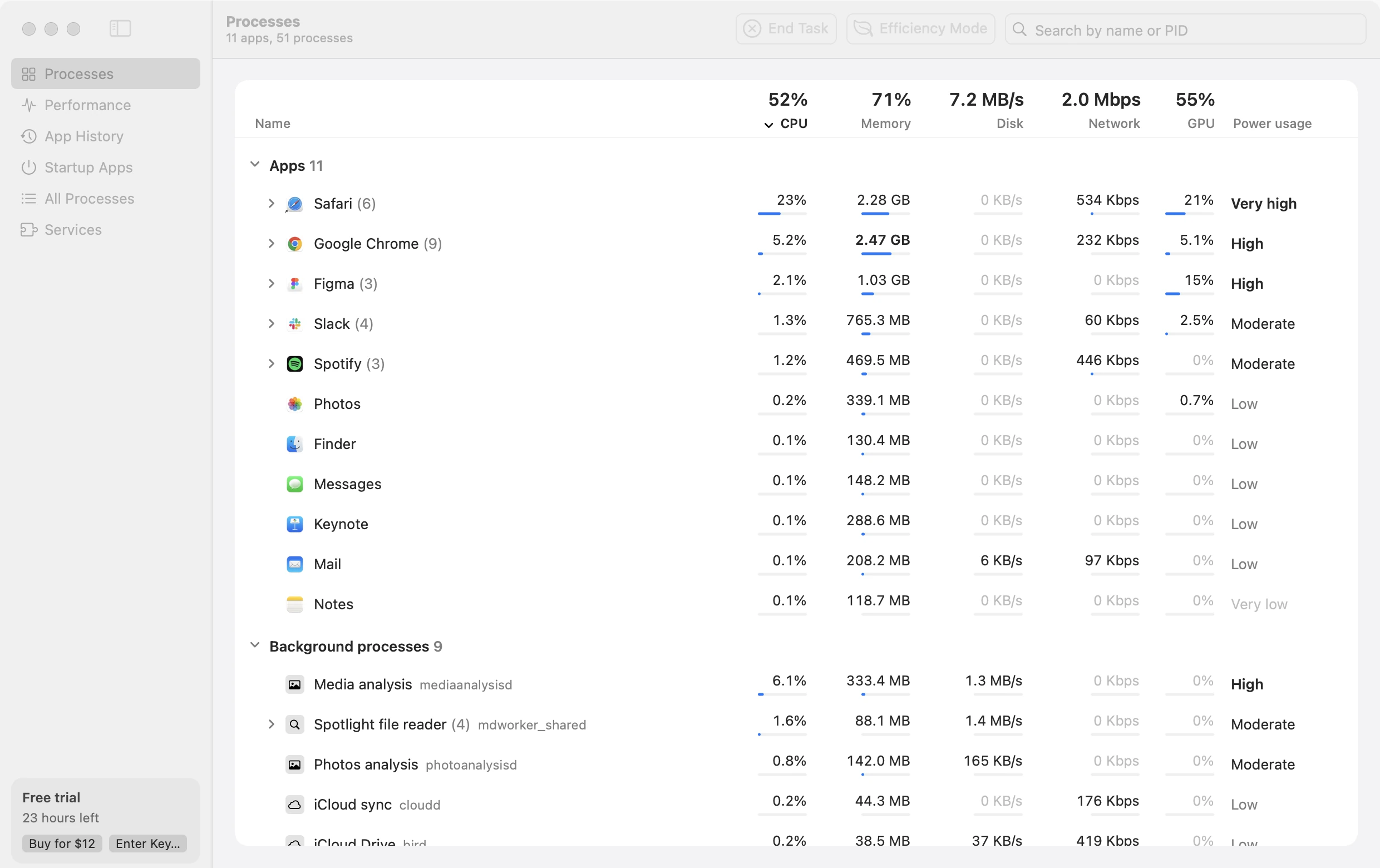
This is Foreman's Processes page, working. A Safari tab has run away with the processor, so Safari sits at the top. Select it, then press End Task. Or press Efficiency Mode to keep it open without the slowdown.

Select Safari, then press End Task.
A working model with made-up figures. Foreman shows your own Mac.
Names you can actually read.
macOS runs hundreds of programs with names like mds_stores. Foreman says what each one is, keeps the real name beside it, and folds every helper under the app it works for.
- mds_storesSpotlight indexingBuilds and updates the Spotlight search index. Busy after big file changes or updates.
- mediaanalysisdMedia analysisAnalyses photos and videos for search, Live Text and Visual Look Up.
- kernel_taskmacOS kernelThe core of macOS. High CPU here often means the Mac is slowing itself down to stay cool.
- birdiCloud DriveSyncs iCloud Drive files.
- com.apple.WebKit.WebContentWeb contentRenders a web page for Safari or another app using WebKit.

Every app, with everything it runs.
An app's helper processes sit under it and add up, so you see what Safari really costs, not one tab at a time. Open it up to find the one that's busy.
- End Task
- Asks the app to quit the normal way, so it can offer to save. Press it again to force quit. An app that has stopped responding is force quit at once. Or press ⌘ ⌫.
- Efficiency Mode
- Keeps an app open but out of the way while you work in something else. More about it below.
- Suspend and Resume
- Freezes an app where it is, using nothing, until you let it carry on.
- Restart
- Quits an app and opens it again, behind Foreman, so you stay where you were.
- Set Priority
- Gives a process less of your Mac's time, from All Processes.
- Show in Finder, Search Online, Properties
- Where a process lives, what the web says about it, and everything else Foreman knows.
macOS lets only an administrator change system processes, so for those Foreman asks for your password first, and it never offers to end the core of macOS.
Efficiency Mode: keep it open, stop it hogging.
For the app you need open but don't need right now: the chat app, the second browser, the photo library catching up. In the background it gets a quarter of the processor it would take, at low priority, on the efficiency cores of Apple silicon.
- Full speed when you need it.Switch to the app, or let it play sound, and it runs freely until you switch away.
- Remembered.It's still in Efficiency Mode the next time the app opens, until you turn it off.
- Off from anywhere.Turn it off from the toolbar, the menu bar or any page, and it runs at full speed again at once.
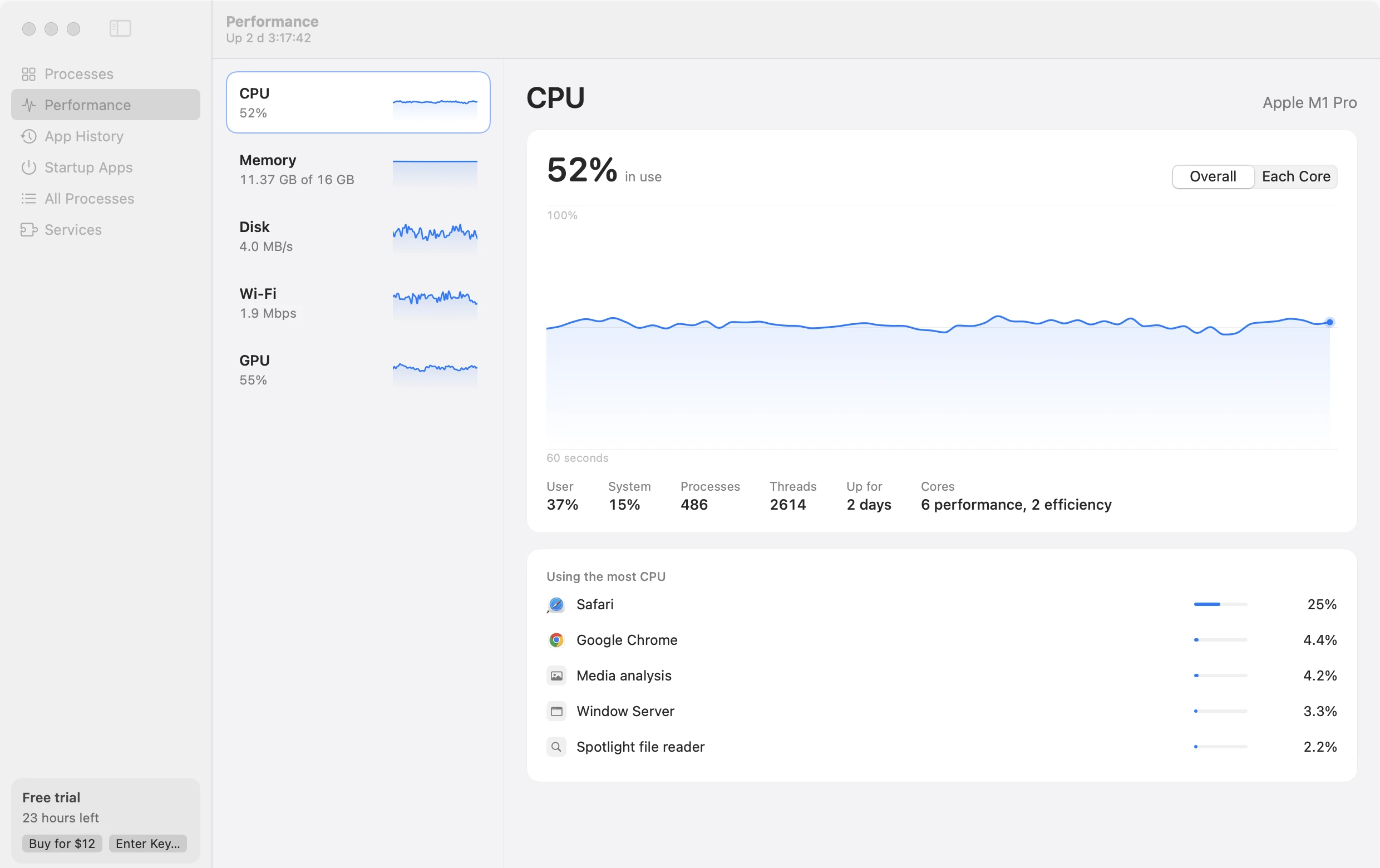
How hard your Mac is working, live.
CPU overall or core by core, memory with memory pressure, disk, Wi-Fi and GPU, each with a minute of history. Under each graph, the apps using the most.
Start faster, and clean up what deleted apps left behind.
Startup Apps shows everything that opens at login or runs in the background, grouped by the app it belongs to. Switch any of it off. Apps you deleted long ago often leave helpers behind; Foreman finds them, and removes them all in one go.

App History
What each app has used since it opened: processor time, disk, network and energy. Sort by energy to see what has been draining your battery.

Always one click away.
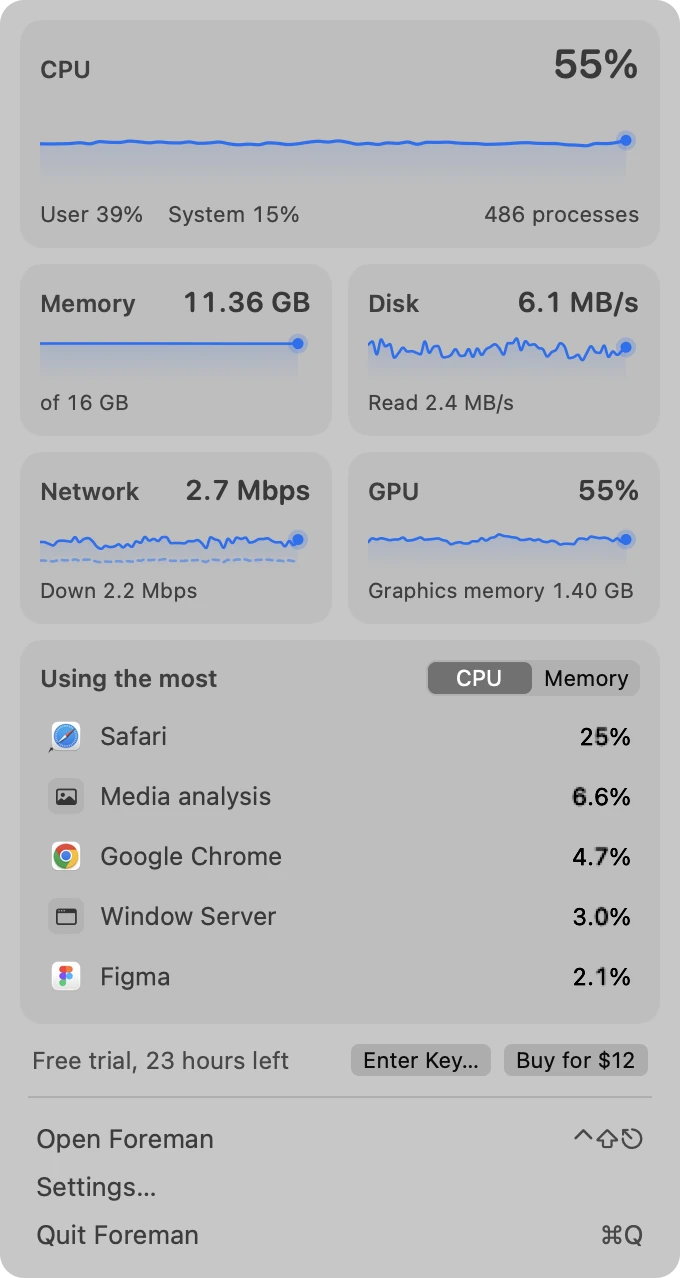
A live readout sits in your menu bar. Click it for a panel with your Mac's figures and the apps using the most, each with End Task. Close the window and Foreman leaves the Dock but stays here, and Control-Shift-Escape brings it back from any app.
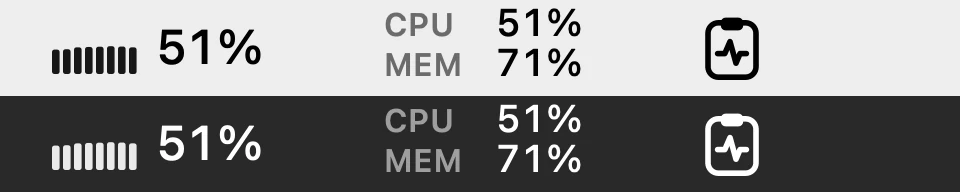 The readout, as a graph or as figures.

$12once
Free for 24 hours. One license for up to 3 Macs.
macOS 14 or laterApple silicon and IntelSigned and notarized by AppleDownload 4.1 MBSeven-day refunds
Questions
Is it like Task Manager on Windows?
That's the idea. Processes, Performance, App History, Startup Apps, Details and Services are all there, and Control-Shift-Escape opens it from any app. It's made for macOS, so it knows macOS: plain-English names for its processes, Efficiency Mode for apps that hog the Mac, and a readout in the menu bar.
Is it safe to end a process?
End Task asks an app to quit the normal way, so it can offer to save your work. Force quitting warns you first. Foreman won't end the core of macOS at all, and it warns you before ending anything that would log you out or freeze the Mac.
Why does it ask to control System Events?
The Startup Apps page reads and changes your login items through System Events, so macOS asks you once. Click OK to see and switch those items. If you'd rather not, the rest of Foreman works as usual.
Why does it sometimes ask for my password?
Ending or changing a system process takes an administrator, so Foreman asks for your password first. Apps you opened yourself don't need it.
Does Foreman slow my Mac down?
No. With its window closed, Foreman reads a few machine-wide counters for the menu bar and nothing else, so it can sit there all day.
What happens when the trial ends?
Everything works for 24 hours from the first launch. To keep using Foreman after that, buy a license for $12 and enter its key in Foreman > Enter License Key… One key works on up to 3 Macs. Anything you put in Efficiency Mode runs at full speed again when the trial ends.
Which Macs does it run on?
Any Mac on macOS 14 Sonoma or later, with Apple silicon or Intel.